Overview
The Xero integration allows your CRM to automatically sync contacts and invoices into Xero, reducing manual accounting work and ensuring consistency across both systems. With accurate tax mapping, multi-currency support, and real-time invoice updates, this integration helps streamline financial workflows so you can focus on running your business. The Xero integration provides a one-way sync that sends invoices from your CRM into Xero. Contacts are imported from Xero into your CRM so invoices can be matched correctly. If no matching contact is found at the time of sync, a new contact is automatically created in Xero.
What Syncs Today
Contacts (Xero → Your CRM)
Active contacts from Xero are imported into your CRM during setup.
If an invoice is synced and no matching contact is found, the system will create a new contact in Xero automatically.
Invoices (Your CRM → Xero)
When you create an invoice inside your CRM, the following details sync to Xero:
Contact mapping
Line items (names, quantities, prices, discounts)
Taxes
Currency
Status updates (Sent, Partially Paid, Void)
Note: Products/Items are not created in Xero; line items only live on the invoice.
Taxes
The system applies the correct tax rate automatically:
If the tax exists in Xero → it’s used.
If the tax does not exist → it is created in Xero during the sync.
Currencies
The invoice currency is passed to Xero.
If it doesn’t already exist, it is added to the Xero organization.
Ensure your Xero plan includes multi-currency support.
Statuses
Your CRM syncs invoice statuses like:
Sent
Paid
Partially Paid
Void
What Does NOT Sync
❌ Receipts
Receipt syncing is not supported yet (coming soon).
❌ Products / Items Catalog
Line items sync only at the invoice level. No product records are created in Xero.
Key Benefits of the Xero Integration
Using the Xero integration in your CRM helps you:
- Keep contacts accurate across systems
Contacts sync in automatically, and new ones can be created on the fly during invoice sync.
- Automate invoice creation
Invoices created in your CRM instantly appear in Xero—no more duplicating them manually.
- Maintain consistent tax rules
The integration maps taxes precisely, even for multi-component tax structures.
- Sync invoice statuses
Status changes in your CRM are reflected in Xero, reducing reconciliation work.
- Ensure accurate multi-currency support
Currencies are applied and added automatically when needed.
- Filter and select accounts for posting
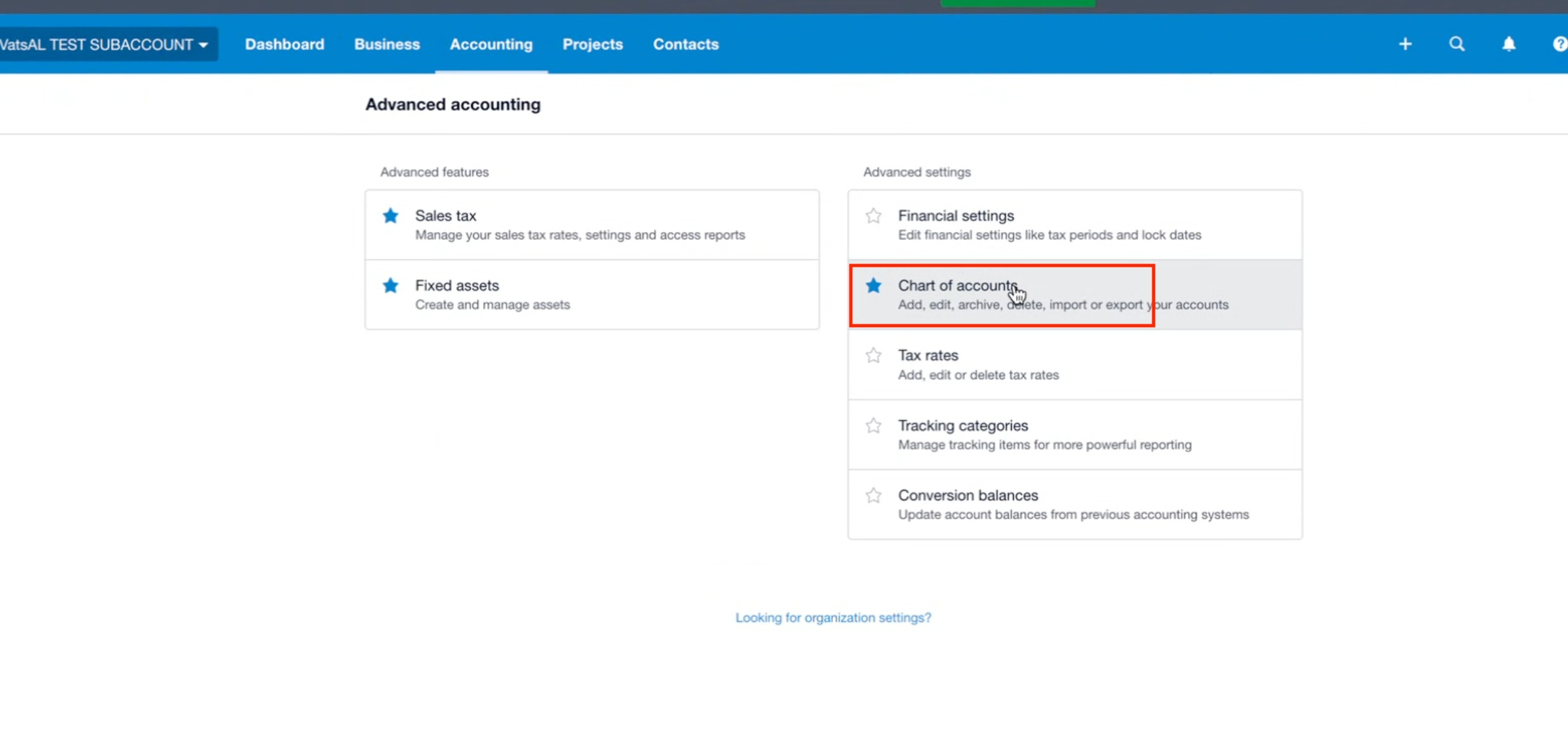
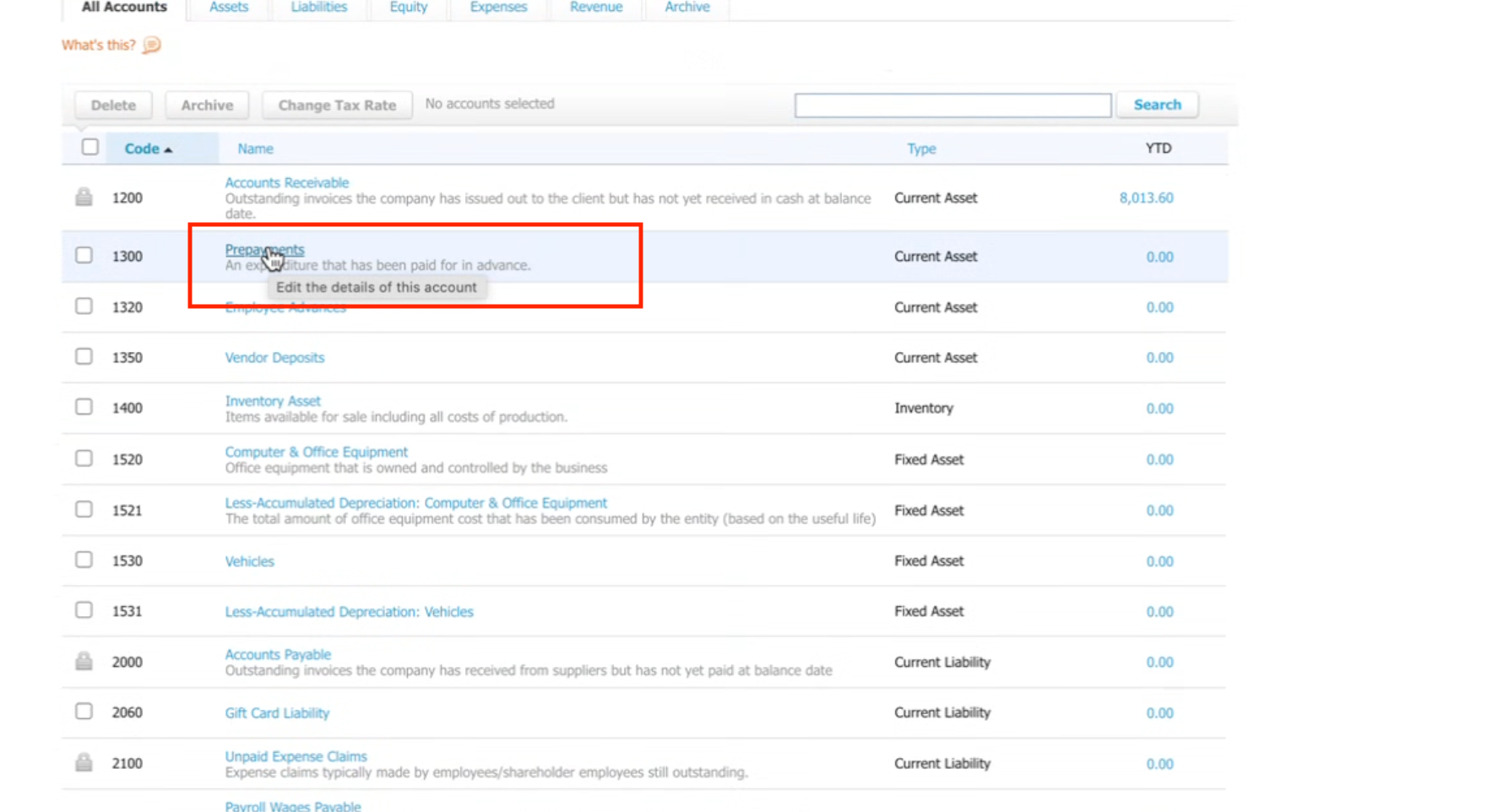
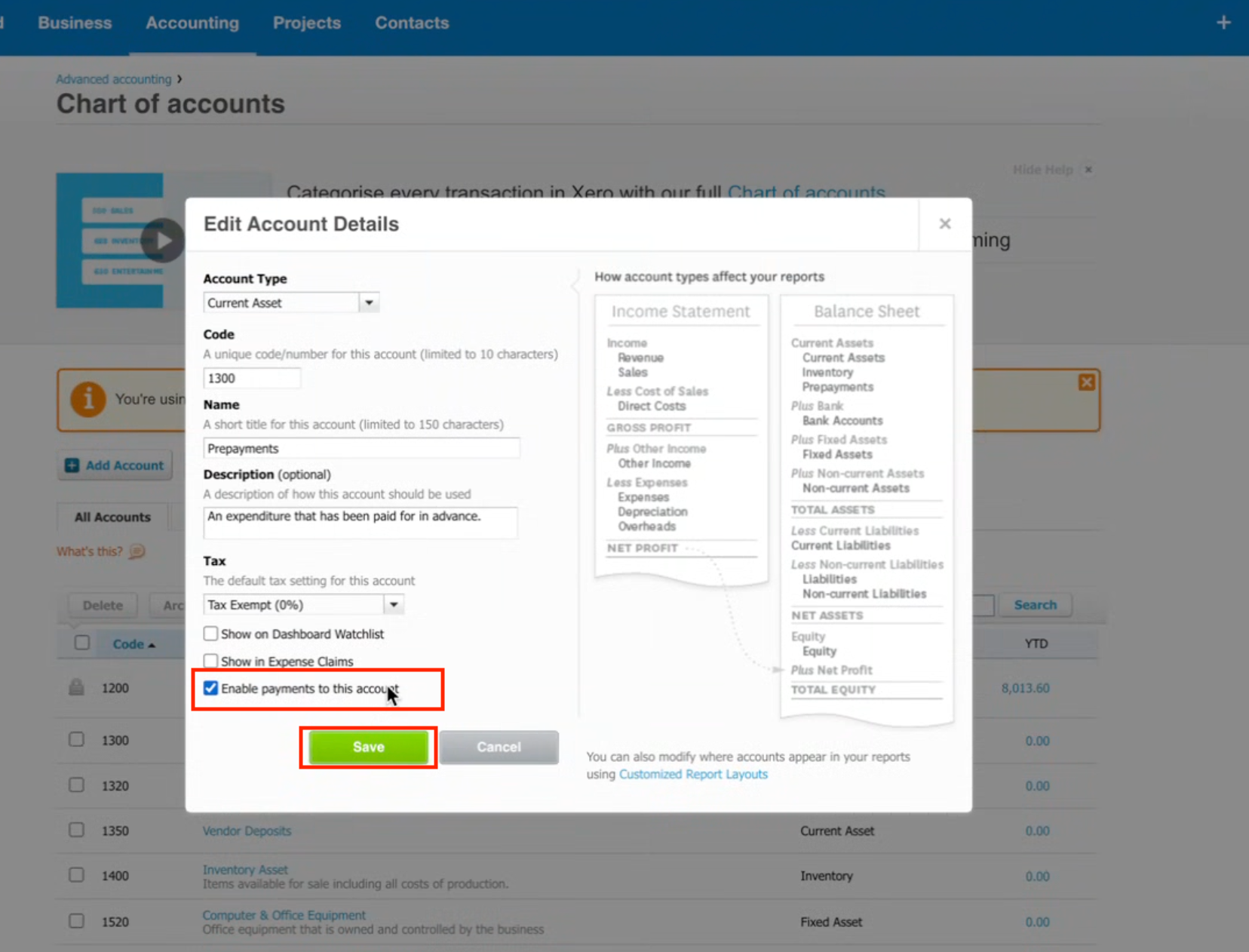
Only payment-enabled accounts appear when selecting the default account for invoices.
How to Set Up the Xero Integration
Step 1: Navigate to the Xero Integration
Go to Settings → Integrations → Xero inside your CRM.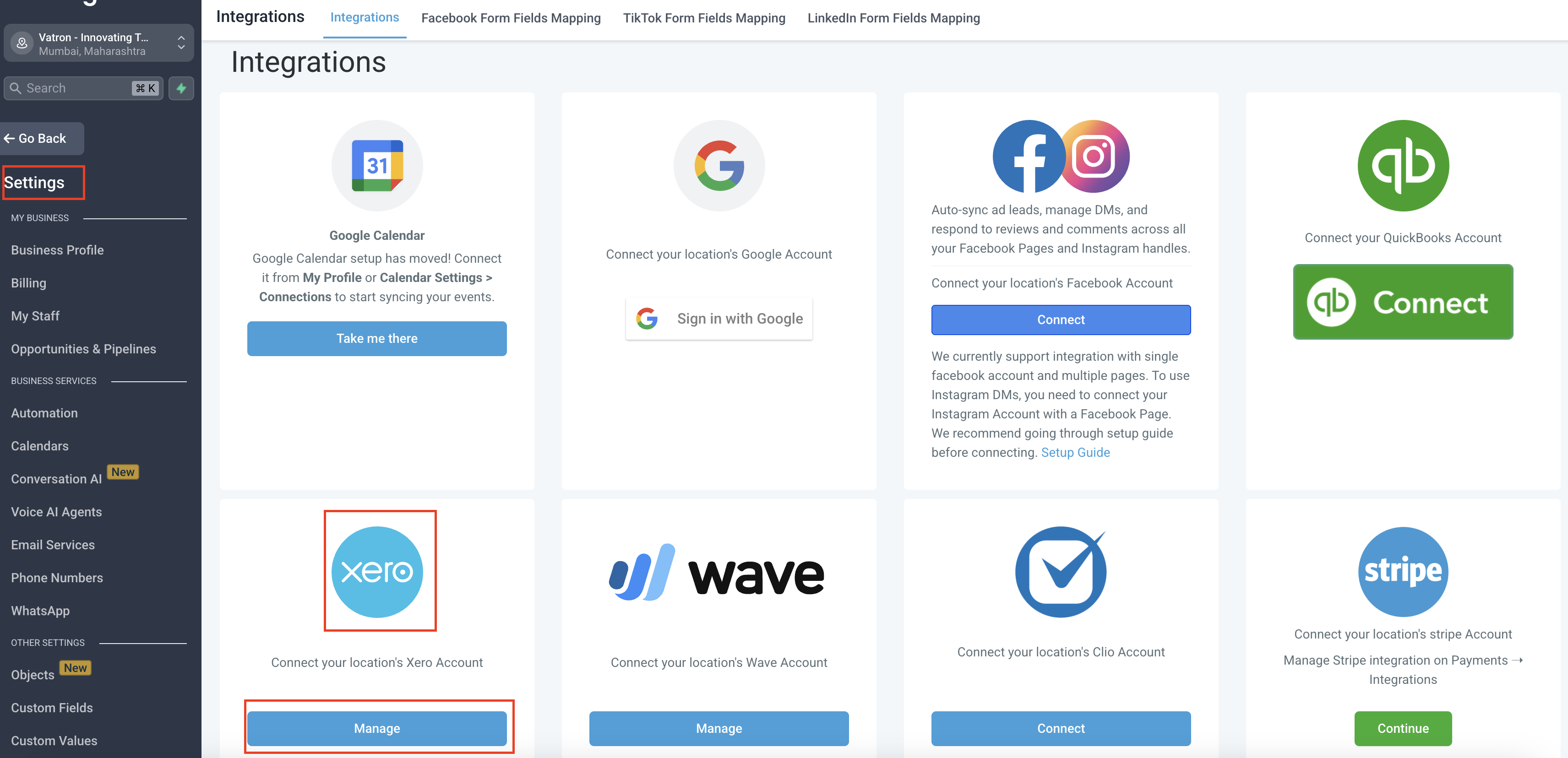
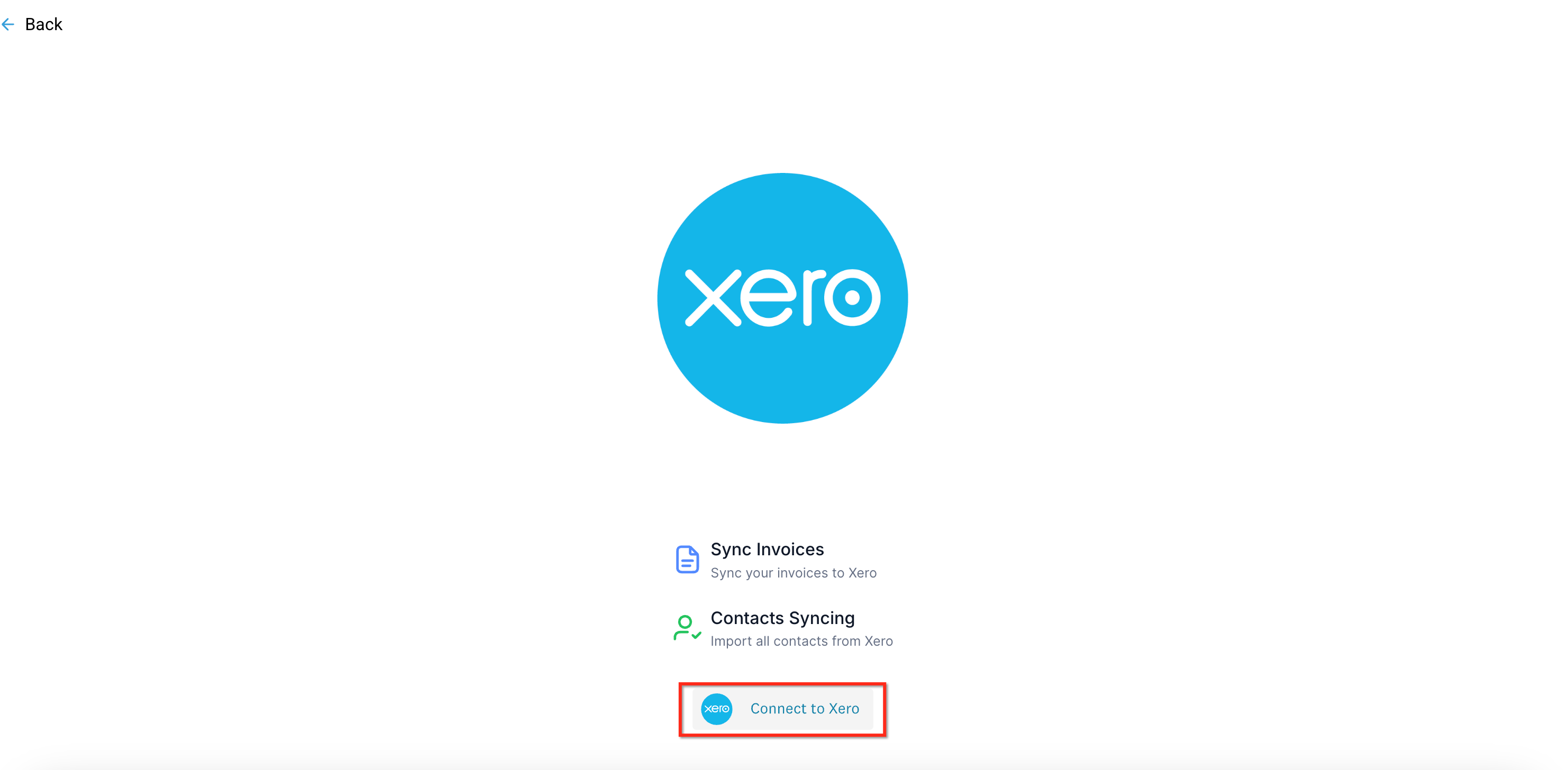
Step 2: Connect to Xero
Click the Xero integration tile, then select Connect.
A secure Xero authorization window will open.
Step 3: Sign In & Authorize Access
Log in to your Xero account (if prompted).
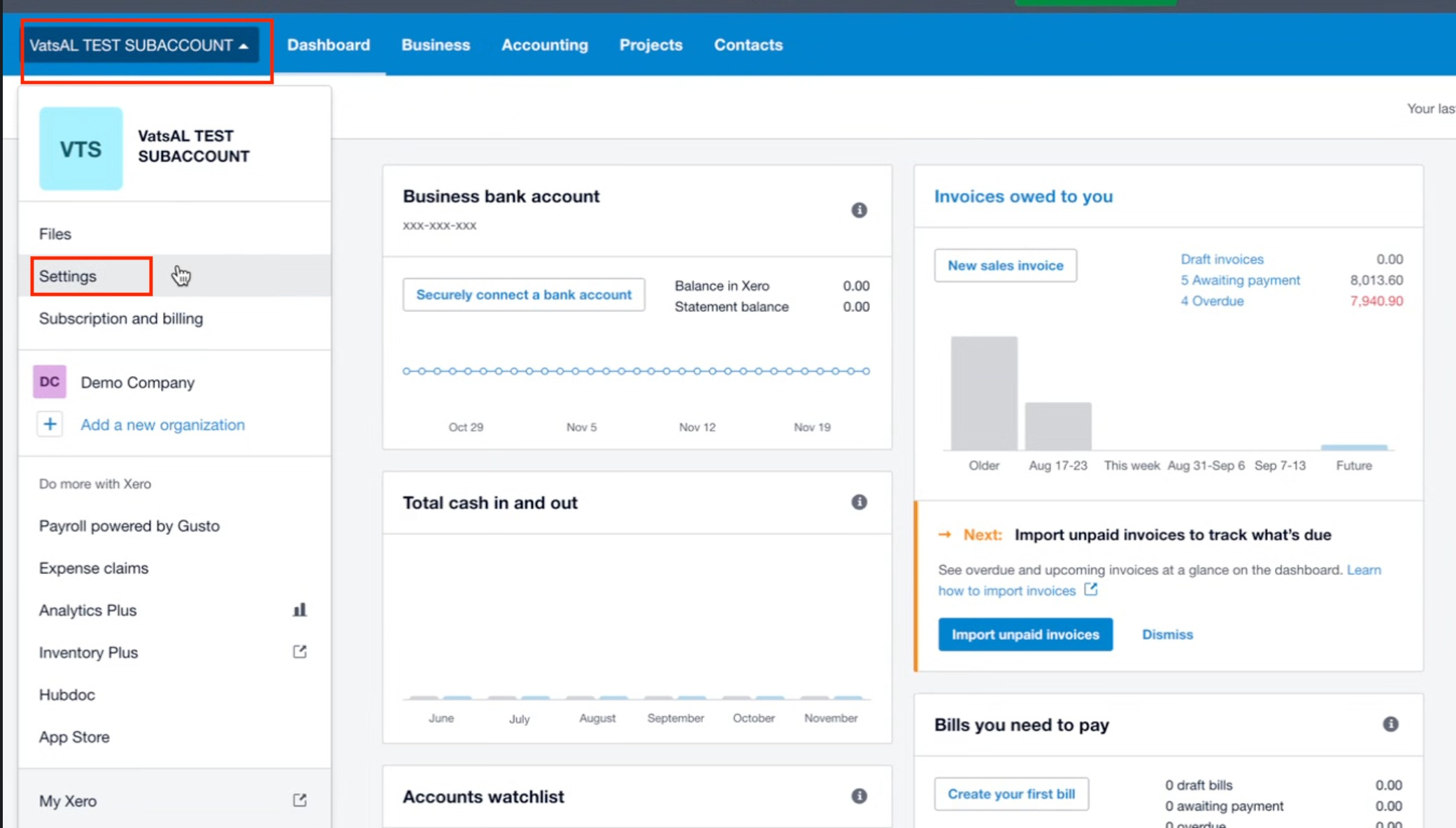
Select the organization you want to connect.
Click Allow Access to approve the connection.
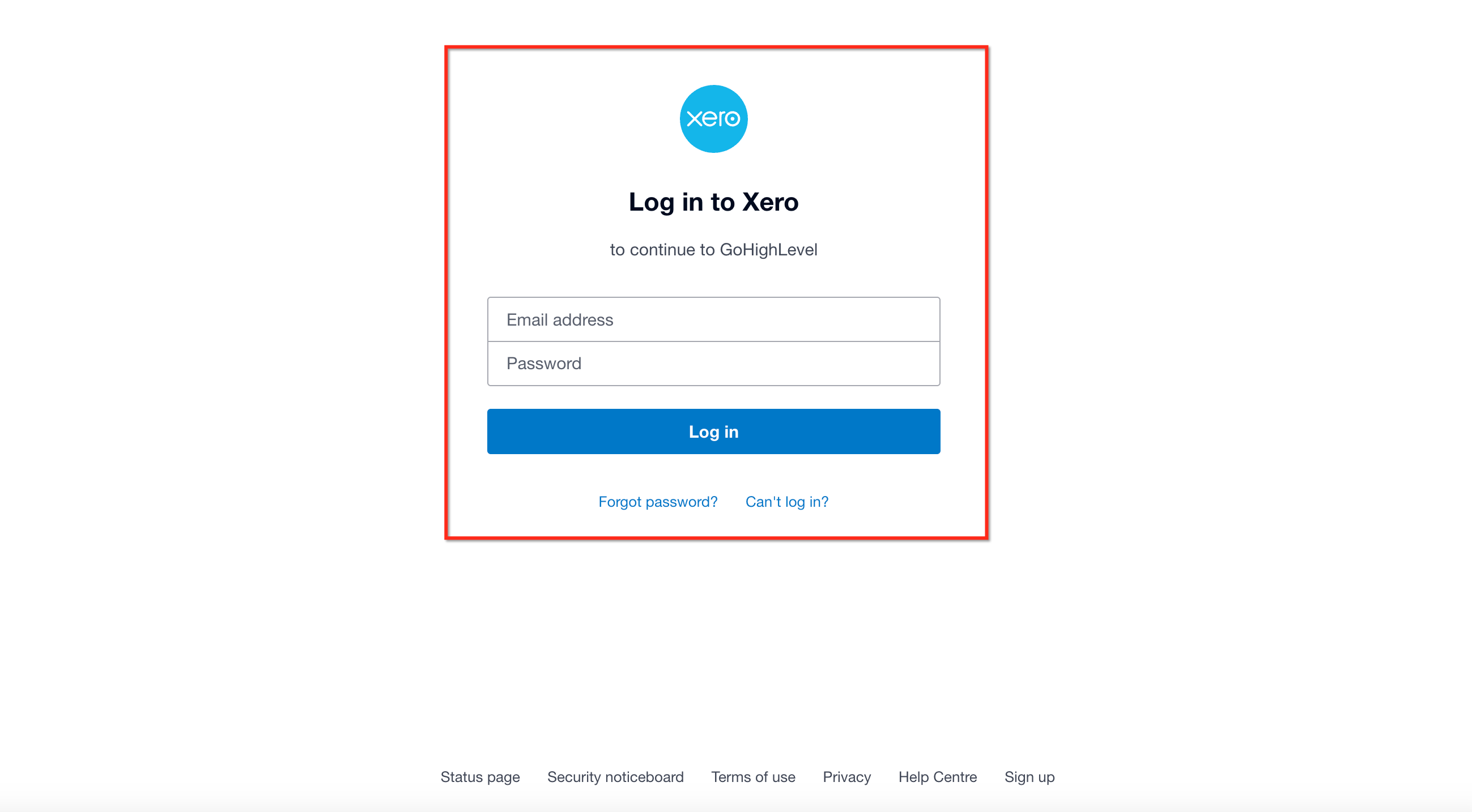
Your CRM requests standard permissions needed to read contacts and create invoicing transactions.
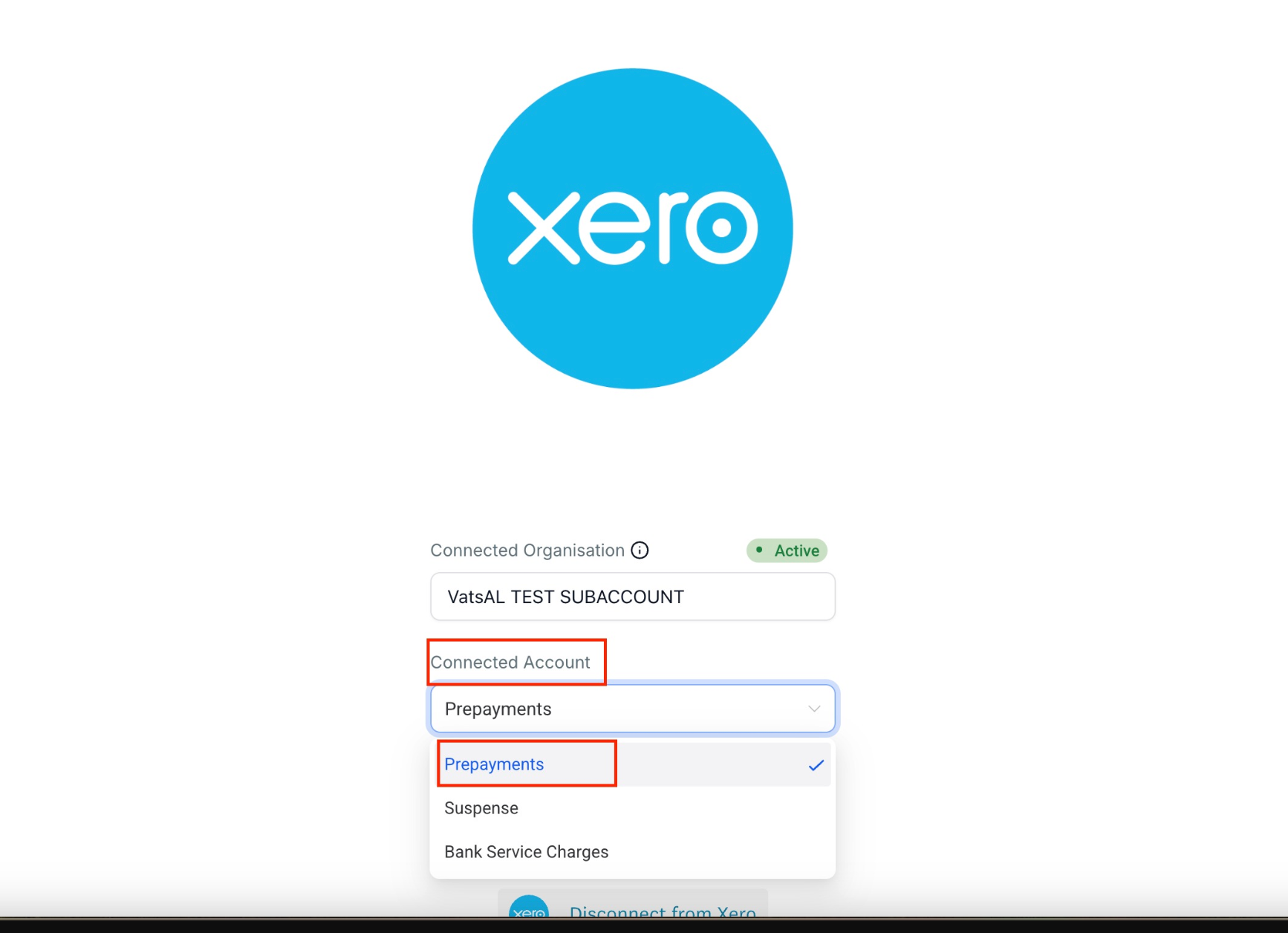
Step 4: Choose a Default Account
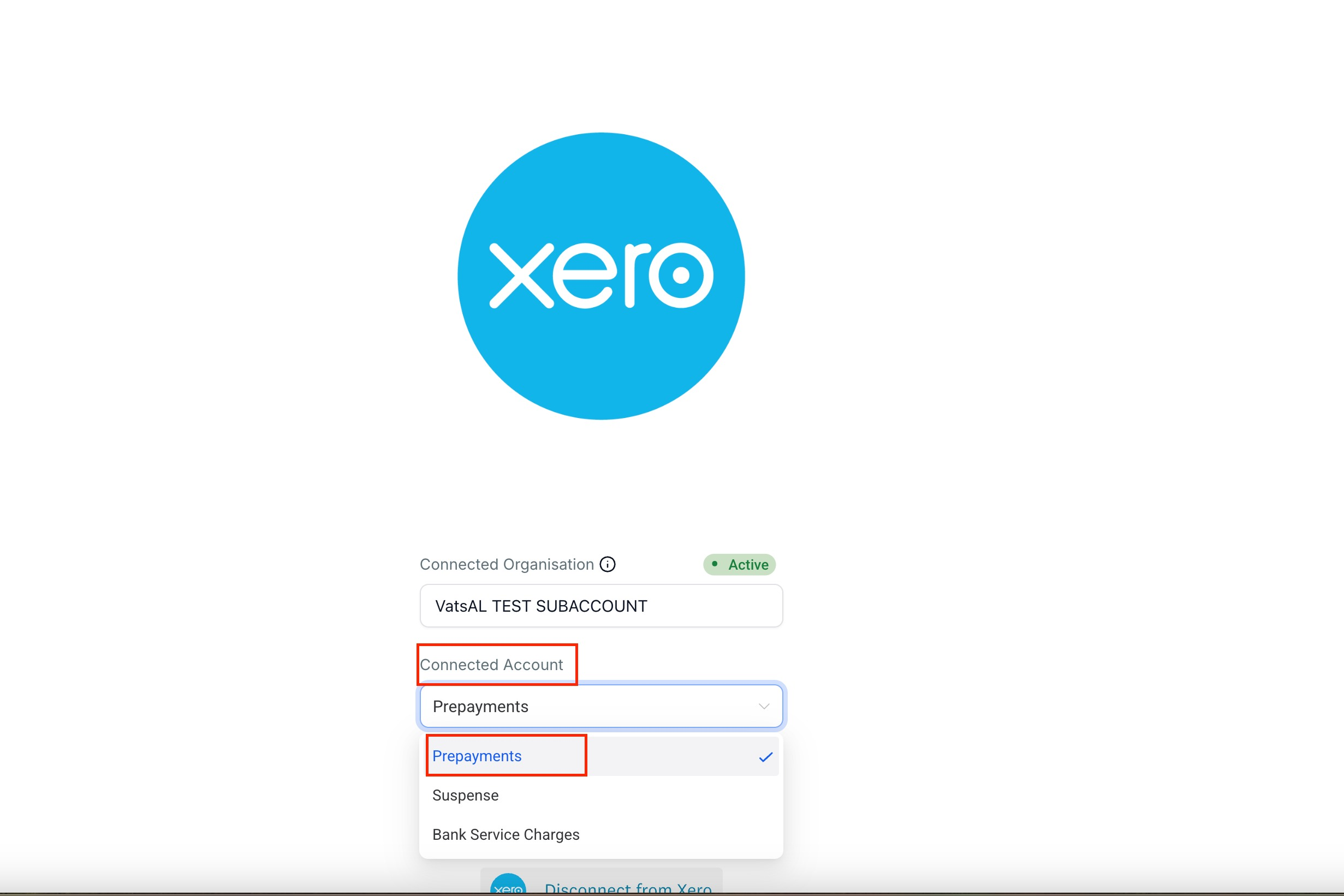
After connecting, select the Xero account you want invoices to post to.
Only accounts with payments enabled will appear.